Result of research photos to Facebook
Oregon State University ichthyologist Brian Sidlauskas led a research expedition into the little-known Cuyuni River region of Guyana in South America. His team documented more than 5,000 fish, but Guyana’s immigration policies required them to identify and catalog every specimen they wanted to bring back—a nearly impossible task, especially on a tight schedule. Sidlauskas uploaded his research photos to Facebook and tagged members of the scientific community who were able to identify almost all of the photos in under 24 hours.

7 Ways to Speed up Your Computer
Facing problem with your windows PC performance time to time. There are so many ways which helps you to Speed up your computer. Slow windows PC take more time to respond to a user’s actions like opening files, surfing internet, copying or moving files and other important tasks. Today we will show you some of the best tips which helps you to can improve your computer’s performance. Do try these steps in a order to speed up your computer performance.
 How to Speed up Your Computer
1. Always Clean Your Desktop
Always try to clean your Desktop files, try to put those files in the “My Documents” folder. If there are so many files with big size,you can put them in separate folders on your drives. Create shortcuts on your Desktop for the folders or files you frequently use. This method will help you to free up the memory for your PC and also reduce the time and frequency the hard drive is used and improve the response of your computer to programs you open and things you do. With this simple and easy method you will make your computer run faster.
2. Fix Windows Systems Files
We recommend this method to use this will help you to fix your windows system files. A Windows PC has lots of system file that perform different functions. Some time some of these system files has changed or become corrupted and that’s the cause of slows windows pc. If this happens to your windows PC, the speed of your system may decrease. By using the utility “System File Checking”, it will scan these files and fix any problem it finds.How to use System File Checker, follow these steps:
1. Close all open programs on your Desktop
2. Click on the Start button
3. Click Run
4. Type this command in the Run box: SFC /SCANNOW
5. Click the “OK” button
3. Scan for Viruses, Spyware and Adware threats
Every Windows computer is vulnerable to viruses. Viruses are the major factor of your windows PC slow performance. All these Spyware and Adware are programs created by companies to find out more information about customers, so they can better market products to them. All these spyware and adware can load into computer memory and slow down your PC. Here are 10 Best Anti Virus Programs of 2012 and Top Free Windows Antivirus and Scanners which will help you to scan your PC.4. Uninstall Unused Programs
Whenever you install a new program in your PC, it creates connections between the program and the operating system. But most of the time you didn,t some of the programmes which are installed on your PC, they can slow down your system. So always try to uninstall unused programs, removing unused programs will free up space on your computer and may speed up your system’s performance.Do try this free app Revo Uninstaller to Uninstall Unused Programs.
5. Adjust Visual Effects for Better Performance
Windows provides a lots of interesting visual effects including animated windows and fading menus for operating system. If you do not have enough operating memory or facing memory problems, than these visual effects can slow down your computer. Adjusting or reducing visual effects can make a difference.6. Defrag Your Computer
The Windows PC system places files and programs on a hard drive where there is space; one file will not necessarily be located in one physical place. Over time, a hard drive can become fragmented with hundreds of files broken up in many locations across the drive. Ultimately, this can slow down a computer’s response time because it takes longer for it to access information. So now its time to defrag your Windows PC to speed up your computer. That’s why using a defrag program can play an important role in speeding up your computerTry These Tools to Defrag Your Computer – Smart Defrag, Disk Defrag, Auslogics Disk Defrag
7. Don’t Automatically Start Programs
Unnecessary programs running on windows startup is the major factor of Slow PC. With the helps of this article we will show you how to determine what programs run when Windows boots, so you can choose which ones to remove from start ups programs. All these programs uses your system resources (operating memory), so any program not running will reduce memory use and may speed up your PC. Try the following step to stop automatically start programsOpen the System Configuration Utility:
1. Click on the Start menu, then click on “Run”
2. Type “msconfig” into the textbox and click OK (The System Configuration Utility will open).
3. Click the Startup tab (to see the list of items that automatically load with Windows).
4. Uncheck the box next to the program name you do not want to start with Windows.
5. Close this program and restart your computer.
Try these Simple tips and Speed up your Computer. Check out more cool and top stuff Here
IRA COMET HD
Wishtel Company has launched its new device ira Comet HD which is its third budget tablet in the country. The company has launched ira thing2 last month has come up with ira comet hd ,their first tablet with 10.1 inch display. The display type is multi-touch capacitive and the display resolution is 800 x 1,024 pixels.

There are USB and HDMI ports provided. Ira Comet HD Tablet runs on Android 4.0 Ice Cream Sandwich operating system. The tablet is powered by 1.2 GHz ARM11 Cortex A8 processor. The battery that can be found in the device is of 5000 mAh capacity and gives 6 hours browsing time.
 Ira Comet HD Tablet has 1GB RAM and there is also a built in memory of 8GB and can be extended upto 32GB. There are two cameras on Wishtel tablet. The rear camera of 2 megapixel and the front is a VGA camera.
It is an educational tab too.It is offering course materials for 12 month and 24 months programme of IIT-JEE (Engineering) entrance, Medical AIPMT, study materials for CAT & GMAT entrance exams and school curriculum of CBSE, ICSE syllabus to students at a special subscription cost with the tablet.
WishTel IRA Comet HD specifications

• 10.1-inch (800 x 1024 pixels) capacitive touch screen display
• 1.2 GHz Cortex A8 processor
• Android 4.0 (Ice-cream Sandwich) OS
• 2MP rear camera, VGA front-facing camera.
• 1 GB RAM, 8GB internal memory, expandable up to 32GB with microSD and USB Stick,
• 3G (via Dongle), WiFi 802.11 b/g, mini HDMI port (offers 1080p output)
• Music Player: mp3, wav, wma, aac , AAC+, ac3, real audio
• Video Player : mp4, AVI, mkv, mov, 3GP, additional 3D converter
 • 3.5 mm audio jack, built-in stereo speakers and microphone,
• 5500mAh battery with 5 to 6 hrs browsing time.
• The tablet comes preloaded with various apps such as Android Market, Internet Browser, MSM, Open Office, Media Player, e-Book Reader, Skype Video Chatting, Photo Viewer, Games , Gtalk, Google play.
Pros of this tab:
• Low price.• Battery backup is good.
 • HD video playback upto 2160.
• Rear camera.
Cons of this tab:
• No simslot.• No Bluetooth.
• GPS facility not available.
• VGA front facing camera not good.
The WishTel IRA Comet HD is priced at Rs. 9999.
AQUA 4.0

It comes with a 3.5-inch (480×320 pixels) and is powered by 800 MHz processor. Unfortunately Intex Aqua 4.0 doesn't get ICS (Ice cream Sandwich) OS and the Smartphone comes with 2.3.5 Gingerbread OS. It has a 3MP rear camera and a front-facing 0.3MP camera. The 3MP camera comes having features like 4x digital zoom and auto focus. There is no LED flash.
The Intex Aqua 4.0 is equipped with three sensors gravity, light and proximity sensors which are not present in other budget phones allowing user to adjust brightness of the screen, and the phone to auto-detect and turn off the screen during calls etc, control the outflow of infrared, and also save battery at the same time.
The two-point capacitive touch screen phone has 512MB of RAM. The device also comes with 131MB built-in storage, Intex Aqua 4.0 has powered Standard 1400 mAh, Li-Ion battery, which gives a talk time of up to 3 hours and a standby of up to 140 hours.
The preloaded apps are Gmail, Flip kart, Face book, India Rail, Google Maps, Nimbus, Skype and YouTube.
Here are the key features of the Intex Aqua 4.0:
 • Dual –SIM handset
 • 800MHz processor
• Android v2.3.5 (Gingerbread) operating system
• 3.5-inch display screen with a resolution of 480 x 320 pixels
• Dual camera (3MP rear and 0.3MP front)
• 1400mAh battery (up to 3 hours talk time)
• G sensor, proximity and light sensor
• FM with recording
• Bluetooth v3.0 with A2DP
• microSD slot expandable memory up to 32GB
• Video player and recording
• Mobile tracker
• GPRS/ WAP
• Preloaded games: Angry Birds, Talking Tom, Fruit Ninja etc
• Social networking
 • Auto call record
 PROS:-
• 3.5 Capacitive screen with HVGA resolution,• Low cost.
• Front camera for video chatting
CONS:-
• Low Resolution Secondary camera• Non – HD Screen Resolution
• Low Clock Speed of Processor
• Very low Internal Memory
• Low speed/performance Processor.
• Battery capacity of 1400mAH is very low.
• No flash for back camera.
• Android Gingerbread OS.
• Not a known brand in smart phone market.
Aqua 4.0 is available now at Rs 5490/-
JNTUK 3-1 R10 Regular/Supplementary Results November 2012

JNTU KAKINADA : JNTUK 3-1 R10 Regular/Supplementary Results November 2012
NOTE : Results are Declared today on 5th Feb. All the best . Links below
JNTUK 3-1 Regulation R10 Regular / Supplementary results are declared today . For more updates follow us on Facebook – wwww.Fb.com/JntuZone
The result Links are Updated below :
Windows 8 Keyboard Shortcuts
Windows 8 Keyboard Shortcuts will help you to get the work done faster on Windows 8, but also help you to save time and effort. Keyboard shortcuts are always handy to use and help you to stop mousing around and become a keyboard maestro.
 Today we provide you the list of Windows 8 Keyboard Shortcuts to help you become a Windows 8 keyboard ninja. These Windows 8 keyboard shortcuts will help you to save your time using Windows 8 and the Metro Start Screen a lot easier and more productive.
Windows 8 Keyboard Shortcuts
Here is the list of Windows 8 Keyboard Shortcuts
Windows logo key+Y – Temporarily look at the desktop
Windows logo key+Enter – Launches Narrator
Windows logo key+F – File Search
Windows logo key+I – Settings
Windows logo key+K – Connections
Windows logo key+H – Share
Windows logo key+Q – Search
Windows logo key+W – Settings search
Windows logo key+Z – Flip open apps
Windows logo key+C – Toggle control
Windows logo key+D – Open Desktop
Windows logo key+, – Peek at desktop
Windows logo key+B – Back to desktop
Windows logo key+. – Snap app to the left
Windows logo key+Shift+. – Snap app to the right
Alt+F4 – Close an app
Windows logo key+X – Open system utility settings menu
Windows logo key+PrntScrn – Take screenshot and save to Pictures
Windows logo key+Tab - Open switch list
Windows logo key+T – Preview open windows in taskbar
Windows logo key+U – Open Ease of Access Center
Windows logo key+Spacebar – Switch language and keyboard
Hope you like the article about Windows 8 Keyboard Shortcuts, if you find any more helpful ones, let us know in the comments below. You can download the Windows 8 Consumer Preview from here.
Windows 8 Keyboard Shortcuts
Here is the list of Windows 8 Keyboard Shortcuts
Windows logo key+Y – Temporarily look at the desktop
Windows logo key+Enter – Launches Narrator
Windows logo key+F – File Search
Windows logo key+I – Settings
Windows logo key+K – Connections
Windows logo key+H – Share
Windows logo key+Q – Search
Windows logo key+W – Settings search
Windows logo key+Z – Flip open apps
Windows logo key+C – Toggle control
Windows logo key+D – Open Desktop
Windows logo key+, – Peek at desktop
Windows logo key+B – Back to desktop
Windows logo key+. – Snap app to the left
Windows logo key+Shift+. – Snap app to the right
Alt+F4 – Close an app
Windows logo key+X – Open system utility settings menu
Windows logo key+PrntScrn – Take screenshot and save to Pictures
Windows logo key+Tab - Open switch list
Windows logo key+T – Preview open windows in taskbar
Windows logo key+U – Open Ease of Access Center
Windows logo key+Spacebar – Switch language and keyboard
Hope you like the article about Windows 8 Keyboard Shortcuts, if you find any more helpful ones, let us know in the comments below. You can download the Windows 8 Consumer Preview from here.
It’s about hard disks work
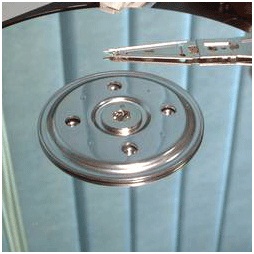
If you are to dismantle the hard disk drive by opening the top casing (after removing all
the necessary screws), the first thing you'll see is a spindle holding one or a number of mirror-like hard rotating platters (commonly called data platter). The platters could be made to spin at an extremely high speed, technically between 5,400 to 10,000 revolutions per minute (RPM). An extremely thin
magnetic coating is layered onto the surface of the platter that is polished to mirror-type smoothness.
The platter is usually made of glass or ceramic
(modern platter may use titanium). Unlike a floppy disk, the platter cannot be bent or flipped and hence we coin it as "hard disk" or "hard drive". Commonly a hard disk contains 1 to 10 identical platters that are stacked in parallel to form a cylinder. There is usually one Read Write (RW) head designated per platter face, and each head is attached to a single actuator shaft which moves all heads in unison and performs a uniform synchronous motion during reading or writing of data.
Data on a hard disk is stored in microscopic areas called magnetic domains on the magnetic material. Each domain stores either a 1 or 0 value. Similar to a floppy disk, a hard disk records its data in concentric circles or tracks, which are numbered from the outermost edge to the innermost edge of the platter. These tracks are further subdivided into smaller units called sectors which typically store 512 bytes of data each. Zoning may be needed to further optimist the data storage as the outer circumference would normally pack more sector units than the inner circumference.
The RW head is the key component that performs the reading and writing functions. It is placed on a slider which is in term connected to an actuator arm which allow the RW head to access various parts of the platter during data IO functions by sliding across the spinning platter.
The sliding motion is derived by passing a current through the coil which is part of the actuator-assembly. As the coil is placed between two magnets, the forward or backward sliding motion is hence derived by simple current reversal. This location of the platter (just like the landmark along the road) is identified and made possible by the embedded servo code written on the platter.
It is therefore easy to understand that if the RW head happens to "knock" on the spinning platter out of design specification, a Read Write head crash occurs.
When the computer is switched off, the head is usually pulled to a safe parking zone to prevent the head from scratching against the data zone on platter when the air bearing subsides. This process is called a parking and different techniques have been implemented in various hard disks to handle the take offs and landings. In a Ramp load/unload design, a lifting mechanism parks the head outside of the platter onto a "parking bay" prior to a shutdown. It then automatically unpacks and relocates itself above the disk platter when the platter spins up to appropriate rotational speed.

There're two popular ways to measure the performance of a hard disk:
Data Rate
Data rate is also known as data transfer rate or throughput. It refers to the speed with which the data can be transmitted from one device to another. Data rates are commonly measured in megabytes (MB) per second. The data rates for a typically hard disk ranges between 5 to 40 megabytes per second.
Seek Rate
Seek time refers to the total span of time between a file request by the CPU to the point when the first byte of the file is sent to the CPU. This is one of the several delays associated with reading or writing data on a computer's disk drive. In order to read or write data in a particular place on the disk, the read/write head needs to man-oeuvre to the precise location of the disk platter. This process is known as "seeking", and the time it takes for the head to move to the right place is referred to the "seek time". A typical seek time for a hard disk is about 9 to 15.
S.M.A.R.T
Majority of all hard disk today support a technology known as S.M.A.R.T. (Self-Monitoring, Analysis, and Reporting Technology) which helps to predict imminent disk failures so that users can be alerted to take preventive actions before the disk fails completely.
 Internal of a hard disk drive |
magnetic coating is layered onto the surface of the platter that is polished to mirror-type smoothness.
The platter is usually made of glass or ceramic
(modern platter may use titanium). Unlike a floppy disk, the platter cannot be bent or flipped and hence we coin it as "hard disk" or "hard drive". Commonly a hard disk contains 1 to 10 identical platters that are stacked in parallel to form a cylinder. There is usually one Read Write (RW) head designated per platter face, and each head is attached to a single actuator shaft which moves all heads in unison and performs a uniform synchronous motion during reading or writing of data.
Data on a hard disk is stored in microscopic areas called magnetic domains on the magnetic material. Each domain stores either a 1 or 0 value. Similar to a floppy disk, a hard disk records its data in concentric circles or tracks, which are numbered from the outermost edge to the innermost edge of the platter. These tracks are further subdivided into smaller units called sectors which typically store 512 bytes of data each. Zoning may be needed to further optimist the data storage as the outer circumference would normally pack more sector units than the inner circumference.
 Read Write Head
The RW head is the key component that performs the reading and writing functions. It is placed on a slider which is in term connected to an actuator arm which allow the RW head to access various parts of the platter during data IO functions by sliding across the spinning platter.
The sliding motion is derived by passing a current through the coil which is part of the actuator-assembly. As the coil is placed between two magnets, the forward or backward sliding motion is hence derived by simple current reversal. This location of the platter (just like the landmark along the road) is identified and made possible by the embedded servo code written on the platter.
Flying Height
To write a piece of information to the disk, an electromagnetic flux is transmitted through the head which hovers very closely to the platter. The RW head suspends on a thin cushion of air which the spinning platter induces. This designed distance between the head and platter is called the flying height. It can literally measure to a few millionths of an inch. A good analogy is to try to imagine flying a Boeing 747 with about 6 inches above ground level.It is therefore easy to understand that if the RW head happens to "knock" on the spinning platter out of design specification, a Read Write head crash occurs.
Read Write Function of Disk
As the head writes data onto the disk, it changes its magnetic polarization to induce either a one or zero value. During a read request, data is interpreted when the magnetic fields on the platter brings about an electrical change (as a result of change in electrical resistance of some special material property) in the read-head that passes over it. These electrical fields are then encoded and transmitted to the CPU to be processed and read by the system.Parking of RW Head
 The read/write head will move to the parking zone when the computer is switched off. |
Hard Disk Controller PCB Board
A hard disk also contains a pcb controller circuit board that regulates data traffic. It ensures massive data to be streamed in and out of the disk smoothly. A logic board that sits under the drive controls and connects the spindle, head actuator, and various disk functions of the disk. Embedded with a micro-controller, it executes self-diagnostics test and cleans up data working area in the memory and all internal chip bus in the hard drive when it powers up.Hard Disk Parts Overview
Today's Disk and Data
Storage capacity is measured in terms of GB (Gigabyte). 1 GB roughly equals to 1000 MB (Megabyte). A typical desktop machine purchased today carries a hard disk of at least 80 to 400 gigabyte. Computer data is stored onto the disk logically in the form of files or simply, a string of bytes. When a program requests for a file, the hard disk retrieves its bytes and sends them to the CPU to be processed.There're two popular ways to measure the performance of a hard disk:
Data Rate
Data rate is also known as data transfer rate or throughput. It refers to the speed with which the data can be transmitted from one device to another. Data rates are commonly measured in megabytes (MB) per second. The data rates for a typically hard disk ranges between 5 to 40 megabytes per second.
Seek Rate
Seek time refers to the total span of time between a file request by the CPU to the point when the first byte of the file is sent to the CPU. This is one of the several delays associated with reading or writing data on a computer's disk drive. In order to read or write data in a particular place on the disk, the read/write head needs to man-oeuvre to the precise location of the disk platter. This process is known as "seeking", and the time it takes for the head to move to the right place is referred to the "seek time". A typical seek time for a hard disk is about 9 to 15.
S.M.A.R.T
Majority of all hard disk today support a technology known as S.M.A.R.T. (Self-Monitoring, Analysis, and Reporting Technology) which helps to predict imminent disk failures so that users can be alerted to take preventive actions before the disk fails completely.
Subscribe to:
Posts (Atom)