Showing posts with label ShortCuts. Show all posts
Showing posts with label ShortCuts. Show all posts
Add a Dislike button on Facebook.
 We all have thought of having a dislike button on Facebook. But till now Facebook haven't added it.
But don’t feel bad!!!
I'm here to help you guys add a 'Dislike' button on Facebook.
Just follow the given steps carefully...
Just follow the given steps carefully...

Step 1: Go to Status Magic. It's a Facebook app that is going to help you add your Dislike button.
https://apps.facebook.com/statusmagic/
Step 2: Now just type in your desired status in the ‘Update your status’ box and in the ‘Action button’ type Dislike.
And click on ‘share’ button.


In the Action Button instead of Dislike you can also add actions like 'Love', 'Cool', 'Hate', 'Awesome' or even 'WTF' and 'LoL'.
This trick is sure to amaze your friends!!!
Like us at FACEBOOK
Increase BROADBAND Speed
Hello friends,
Today i cam in front of you with common and simple topic.
when i brows the STW group in FB,
One of my friend asked me "how to increase the speed of BROADBAND?"

You just fallow the bellow steps.
Make sure your logged on as actually "Administrator".
Start->Run->type gpedit.msc
Make sure your logged on as actually "Administrator".
Start->Run->type gpedit.msc


Expand the "Administrative Templates" branch.

Expand the "Network Branch".
Highlight the "QoS Packet Scheduler" in left window.

In right window double-click the "Limit Reservable Bandwidth" setting.

On setting tab check the "Enabled" item.
Where it says "Bandwidth limit%" change it to read 0.

Effect is immediate on some systems, some need to re-boot. This is more of a "counter what XP does" thing. In other words, programs can request up to 20% of the bandwidth be reserved for them, even with QoS disabled
You done it :)
like us at FACEBOOK
Know Your Pending Requests in Your Facebook Account
Hello friends,
Today I’m back with interesting news.
Many of my friends are asking me how to know the pending requests in FACEBOOK.
So came to you on this topic.
Pending friend requests on Facebook are actually those requests which are not confirmed yet.
Yes we could see pending friend requests in “Edit Friends” in the “Settings“. But now it is unavailable. This is why we need to find alternative way to get view all unconfirmed or pending friend requests together.
There are a few alternative ways to view the all pending friend requests together in list. Out of them, I found the easiest way to use a Facebook app called “FriendRequests“. The location of this app is at apps.facebook.com/friendrequests . Once you allow this app to work with your profile, you can see all the friend requests you made before and forward those were not confirmed. See the screenshot of it on my account.
You just fallow the bellow steps to know the Pending friend requests in your Facebook account.
Click on GO TO APP

Click to ALLOW

To load your past pending friend requests, click the BULK LOAD button above, and follow the instructions

| A small window will popup (it may take 5-10 seconds to load) Click the text in the popup and type Ctrl-A (Command-A) to select all the text Type Ctrl-C (Command-C) to Copy the text to the clipboard Click inside this box and type Ctrl-V (Command-V) to Paste the text into this box Click the Load Friend Requests button  Now you can view your friend requests in your Facebook account.  If you want to cancel the request just click on their names just DO the fallowing thing  like us at FACEBOOK | ||
Have a Lot of Face Book Albums Download It as a Single File

Need to download all the photos from your friend's Face book album? Don't Worry!
You need not to download all the pictures one by one, you can download it as a single zip file..
It’s Easy & Free!
Just follow the steps below.
Download all photos from a Face book album in a single zip
Just follow the steps below.
*. Go to Facebook2zip.com
You need not to download all the pictures one by one, you can download it as a single zip file..
It’s Easy & Free!
Just follow the steps below.
Download all photos from a Face book album in a single zip
Just follow the steps below.
*. Go to Facebook2zip.com


*. Click on Go to apothem you will be navigated to another page.

*. Type your Friend’s name here and click next

*. Here you will find all the albums in your friend's profile loaded there, select the album you need to download.

*. Click download.
That's it you have done. Now go to download folder and you will see the album zip file there.
ENJOY!!!
connect us in facebook
New Voter-ID Card Registration Online
Form-6 Registration
Procedure
1. E-Registration form

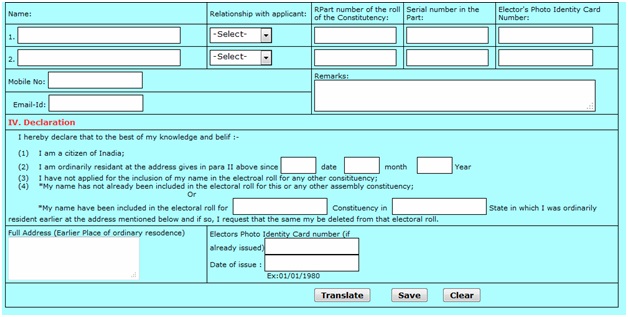
1. Select Assembly Constituency
• If you don’t know the assembly Constituency, you have to click on the link beside the box.
Know your Assembly Constituency
• A page will be displayed, where you have to select the district and then enter the
Village/locality name and click on the search option, you will get the constituency name for
Your locality.

Select the District Enter the Locality Name
For Example:

2. Fill the following details
• Applicant’s Details.
• Particulars of place of present ordinary residence(Full Address
• Details of Member(s) of applicant’s family if already included in the current electoral roll of
the constituency.
3. Upload your Photo using browse option. Here you select only .jpg images and image size must

be less than 100 KB and width and height must be 240 X 320.
4. Once completion of all the details click on the “Translate” option so that the form can be transform

from English to Telugu.
5. Check the details after it translates to Telugu. If there is any correction required, you can make corrections same as Google Telugu translator shown bellow.


You can make corrections by typing in English, use the space bar and
then back space, and then you will get a dropdown list as shown above. From that you can
select the correct word.
6. After completion the all the details as above, click on save button so as the save the
application.
7. After save, a unique application ID will be generated and prompt on screen.
8. The Application ID may be preserved for knowing the application status.
Know your Application Status
Enter your Application ID/Applicant Name/House No, then Click Search.


The status of application will be displayed as below

Click on view Status to know your current status of application.

Top 5 fb Cover Sites

It’s easy to create cover photos for your Facebook timeline, you have to upload and
create a image file that’s exactly 851 pixels wide and 315 pixels tall. But if you are looking for some awesome cover photo for your timeline, than you can use some web services which helps you to create the cover photo for your timeline or you can download cover photos from there and use them on your profile. All these website offers you lots of wallpapers and backgrounds from which you can download images and crop them to the required size. Check out some of the best these sites below that offer Facebook Cover Photos in the correct dimension.
Get Free Facebook Cover for Facebook Timeline
1. Trendy Covers
Trendy Facebook Covers
Here you can find Tons of Facebook Covers for timeline. No matter which Facebook Cover you want its here. It has lots of categories from which you can select your personal Facebook cover and use them on our profile. Facebook Covers updated everyday.
2. First Covers

It has a huge collection of free Facebook covers, they have the highest quality covers for your profile. here you cans browse thousand of HQ covers free and the site is updated regularly.
3. Unique FB Covers

Regularly updated. Contains more than 9600 designs at the time of writing this post. Here you can get the some of the best and unique design for your profile.
4. Facebook Timeline Banner
 Above 7k Free Facebook Timeline Covers. Thousands of Facebook Timeline Covers and Banners are waiting for your here. Just visit the site and grab one for your profile.
5. 99covers

One of the popular website for Facebook Covers for your Facebook Timeline. 99Covers.com has some awesome Facebook Timeline cover photos. Choose your cover photo from the largest and best collection online.
So here are the list of best websites from here you can get some of the best cover for your Facebook timeline and use them free on your profile. All you have to do is visit these site and download the image on your PC and use them on your timeline.
Windows 8 Keyboard Shortcuts
Windows 8 Keyboard Shortcuts will help you to get the work done faster on Windows 8, but also help you to save time and effort. Keyboard shortcuts are always handy to use and help you to stop mousing around and become a keyboard maestro.
 Today we provide you the list of Windows 8 Keyboard Shortcuts to help you become a Windows 8 keyboard ninja. These Windows 8 keyboard shortcuts will help you to save your time using Windows 8 and the Metro Start Screen a lot easier and more productive.
Windows 8 Keyboard Shortcuts
Here is the list of Windows 8 Keyboard Shortcuts
Windows logo key+Y – Temporarily look at the desktop
Windows logo key+Enter – Launches Narrator
Windows logo key+F – File Search
Windows logo key+I – Settings
Windows logo key+K – Connections
Windows logo key+H – Share
Windows logo key+Q – Search
Windows logo key+W – Settings search
Windows logo key+Z – Flip open apps
Windows logo key+C – Toggle control
Windows logo key+D – Open Desktop
Windows logo key+, – Peek at desktop
Windows logo key+B – Back to desktop
Windows logo key+. – Snap app to the left
Windows logo key+Shift+. – Snap app to the right
Alt+F4 – Close an app
Windows logo key+X – Open system utility settings menu
Windows logo key+PrntScrn – Take screenshot and save to Pictures
Windows logo key+Tab - Open switch list
Windows logo key+T – Preview open windows in taskbar
Windows logo key+U – Open Ease of Access Center
Windows logo key+Spacebar – Switch language and keyboard
Hope you like the article about Windows 8 Keyboard Shortcuts, if you find any more helpful ones, let us know in the comments below. You can download the Windows 8 Consumer Preview from here.
Windows 8 Keyboard Shortcuts
Here is the list of Windows 8 Keyboard Shortcuts
Windows logo key+Y – Temporarily look at the desktop
Windows logo key+Enter – Launches Narrator
Windows logo key+F – File Search
Windows logo key+I – Settings
Windows logo key+K – Connections
Windows logo key+H – Share
Windows logo key+Q – Search
Windows logo key+W – Settings search
Windows logo key+Z – Flip open apps
Windows logo key+C – Toggle control
Windows logo key+D – Open Desktop
Windows logo key+, – Peek at desktop
Windows logo key+B – Back to desktop
Windows logo key+. – Snap app to the left
Windows logo key+Shift+. – Snap app to the right
Alt+F4 – Close an app
Windows logo key+X – Open system utility settings menu
Windows logo key+PrntScrn – Take screenshot and save to Pictures
Windows logo key+Tab - Open switch list
Windows logo key+T – Preview open windows in taskbar
Windows logo key+U – Open Ease of Access Center
Windows logo key+Spacebar – Switch language and keyboard
Hope you like the article about Windows 8 Keyboard Shortcuts, if you find any more helpful ones, let us know in the comments below. You can download the Windows 8 Consumer Preview from here.
Computer keyboard shortcut keys----VERSION2
 As we have posted the few shortcuts earlier and we have received a very huge response so we upgraded to some more information as follows.

Here few other list of short cuts along with some tips....
With functional keys
F1 Help
F2 Edit
F3 Paste Name
F4 Repeat last action
F5 Go to
F6 Next Pane
F7 Spell check
F8 Extend mode
F9 Recalculate all workbooks
F10 Activate Menu bar
F11 New Chart
Magic with shift
- SHIFT: Press and hold down the SHIFT key while you insert a CD-ROM to bypass the automatic-run feature
- Shift+F1 HELP
- Shift+F2 Insert, Edit Comments
- Shift+F3 change the text from upper to lower and vice ver·sa
- Shift+F4 move to the top of the pages
- Shift+F5 Find
- Shift+F6 previous pane
- Shift+F7 Display Properties
- Shift+F8 Add to worksheet(excel)
- Shift+F9 calculate active worksheet(excel)
- Shift+F10 Display Short cut Menu
- Shift+F11 New Worksheet
- Shift+F12 Save

Now comes ctrl
Ctrl+A Select All
Ctrl+B Bold
Ctrl+C Copy
Ctrl+D Fill Down
Ctrl+F Find
Ctrl+G Goto
Ctrl+H Replace
Ctrl+I Italic
Ctrl+K Insert Hyperlink
Ctrl+N New Workbook
Ctrl+O Open
Ctrl+P Print
Ctrl+R Fill Right
Ctrl+S Save
Ctrl+U Underline
Ctrl+V Paste
Ctrl W Close
Ctrl+X Cut
Ctrl+Y Repeat
Ctrl+Z Undo
General folder/shortcut control
- F4: Selects the Go To A Different Folder box and moves down the entries in the box (if the toolbar is active in Windows Explorer)
- F6: Moves among panes in Windows Explorer
- F5: Refreshes the current window.
- CTRL+G: Opens the Go To Folder tool (in Windows 95 Windows Explorer only)
- CTRL+Z: Undo the last command
- CTRL+A: Select all the items in the current window
- BACKSPACE: Switch to the parent folder
- SHIFT+click+Close button: For folders, close the current folder plus all parent folders
Accessibility shortcuts
- Press SHIFT five times: Toggles Sticky-keys on and off
- Press down and hold the right SHIFT key for eight seconds: Toggles Filter-keys on and off
- Press down and hold the NUM LOCK key for five seconds: Toggles ToggleKeys on and off
- Left ALT+left SHIFT+NUM LOCK: Toggles MouseKeys on and off
- Left ALT+left SHIFT+PRINT SCREEN: Toggles high contrast on and off
by
KESHAV
IT(gcet)
IT(gcet)
Computer keyboard shortcut keys

Shortcuts keys help provide an easier and usually quicker method of navigating and using computer software programs. Shortcut keys are commonly accessed by using the Alt (on IBM compatible computers), command key (on Apple computers), Ctrl, or Shift in conjunction with a single letter. The de facto standard for listing a shortcut is listing the modifier key, a plus symbol, and the single character. In other words,
"ALT+S" are telling you to press the Alt key and while continuing to hold the Alt key, press the S key to perform the shortcut.
In addition to the shortcuts listed on this page, users can find the shortcut keys to their most popular program by looking for underlined letters in their menus. For example, in the picture to the right you'll can notice that the "F" in File has been underlined. This means you can press the Alt key and F to access the File menu. Note: Some programs require the user press and hold ALT to see the underlined characters. Finally, as can also be seen some of the common features such as Open (Ctrl+O) and Save (Ctrl+S) have shortcut keys assigned to them."ALT+S" are telling you to press the Alt key and while continuing to hold the Alt key, press the S key to perform the shortcut.

As you begin to memorize shortcut keys, you'll notice that many applications share the same shortcut keys. We have the most commonly shared shortcut keys in the below basic PC shortcut keys section.Tip: Users outside the United States or users using a foreign copy of a Microsoft Windows or Microsoft application may not be able to get all the below shortcut keys to perform the function listed below.
The below basic shortcut keys are a listing of shortcut keys that will work with almost all IBM compatible computers and software programs. It is highly recommended that all users keep a good reference of the below shortcut keys or try to memorize the below keys. Doing so will dramatically increase your productivity.
Shortcut Keys | Description |
Alt + F | File menu options in current program. |
Alt + E | Edit options in current program |
F1 | Universal Help in almost every Windows program. |
Ctrl + A | Select all text. |
Ctrl + X | Cut selected item. |
Shift + Del | Cut selected item. |
Ctrl + C | Copy selected item. |
Ctrl + Ins | Copy selected item |
Ctrl + V | Paste |
Shift + Ins | Paste |
Home | Goes to beginning of current line. |
Ctrl + Home | Goes to beginning of document. |
End | Goes to end of current line. |
Ctrl + End | Goes to end of document. |
Shift + Home | Highlights from current position to beginning of line. |
Shift + End | Highlights from current position to end of line. |
Ctrl + Left arrow | Moves one word to the left at a time. |
Ctrl + Right arrow | Moves one word to the right at a time. |
Subscribe to:
Posts (Atom)